

The Windows 11 Media Creation Tool is a vital utility provided by Microsoft that allows users to upgrade their existing Windows PC to Windows 11 or create installation media for a clean installation. This tool is designed to make upgrading and installing Windows as seamless as possible, whether you’re upgrading a single PC or setting up multiple devices. In this article, we’ll explore what the tool is, how to use it, its features, troubleshooting tips, and some essential FAQs to ensure a smooth Windows 11 experience.
What is the Windows 11 Media Creation Tool?
The Windows 11 Media Creation Tool is an official software released by Microsoft that allows users to download the latest version of Windows 11 and create bootable USB drives or ISO files. These files can then be used to install Windows 11 on compatible devices.
Unlike traditional installation methods, this tool simplifies the process of upgrading or installing Windows without needing complex technical knowledge. Whether you want to perform an in-place upgrade or a fresh installation, the Media Creation Tool handles downloading, formatting, and preparing the installation media.
Key benefits include:
Ease of Use: The tool guides you through each step of the process.
Compatibility Checks: Ensures your system meets Windows 11 requirements before installation.
Multiple Installation Options: Supports USB flash drives, ISO files, and direct upgrades.
Official Microsoft Software: Reduces the risk of malware or corrupted installation files.
System Requirements for Windows 11
Before using the Windows 11 Media Creation Tool, it is essential to ensure that your device meets the minimum system requirements for Windows 11. Microsoft has made the hardware requirements stricter than Windows 10 to enhance security and performance.
Minimum requirements include:
Processor: 1 GHz or faster with at least 2 cores on a compatible 64-bit processor.
RAM: 4 GB or more.
Storage: Minimum of 64 GB available storage.
Firmware: UEFI with Secure Boot capability.
TPM: Trusted Platform Module (TPM) version 2.0.
Graphics Card: DirectX 12 compatible with WDDM 2.0 driver.
Display: High definition (720p) display that is greater than 9” diagonally.
Internet Connection: Required for updates and activation.
Failing to meet these requirements may prevent installation or result in limited features after installation.
Features of the Windows 11 Media Creation Tool
The Media Creation Tool offers several useful features that make Windows 11 installation or upgrade easier:
1. Upgrade This PC Now
This feature allows users to upgrade their current Windows installation to Windows 11 without creating separate media. It’s suitable for users who want a quick and simple upgrade without needing external drives.
2. Create Installation Media
Users can create a bootable USB flash drive or download an ISO file that can be burned to a DVD. This is useful for:
Installing Windows 11 on multiple computers.
Performing a clean installation to eliminate old files and improve system performance.
Troubleshooting issues that require reinstalling Windows.
3. Automatic Language, Edition, and Architecture Selection
The tool automatically detects your system’s configuration and suggests the appropriate Windows 11 version. However, you can manually select:
Language (English, Spanish, French, etc.)
Edition (Windows 11 Home, Pro, Education, etc.)
Architecture (64-bit or 32-bit, though 32-bit is not officially supported for Windows 11)
4. Easy ISO Download
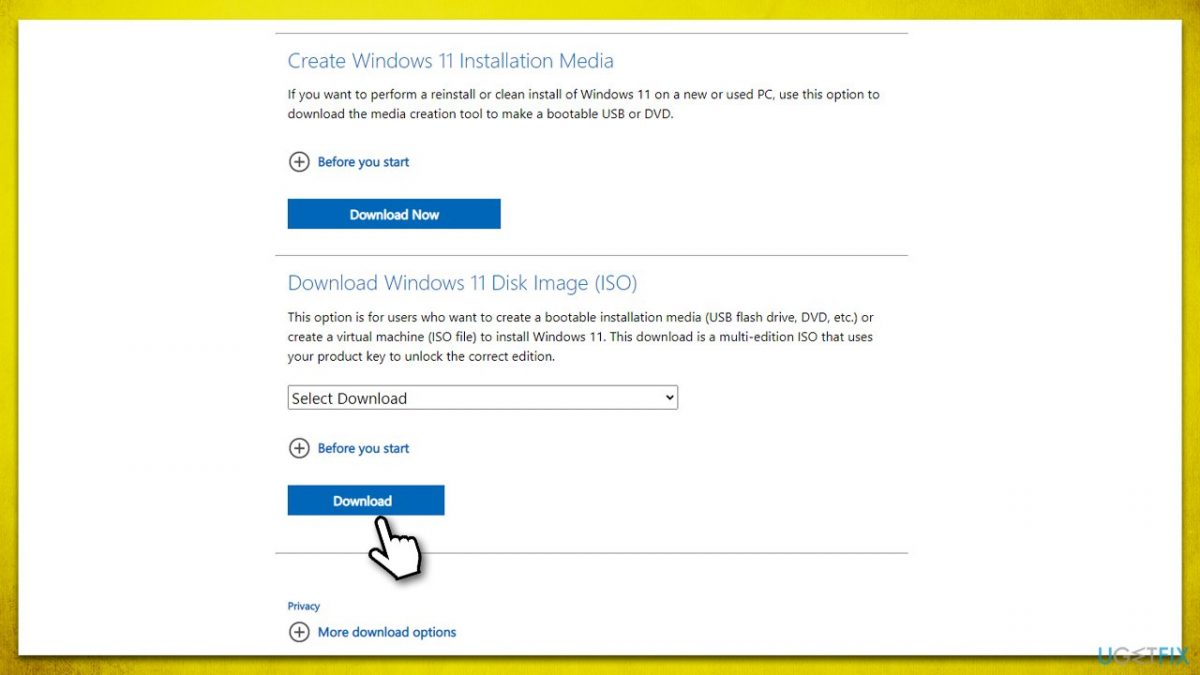
For advanced users, the Media Creation Tool provides the option to download a Windows 11 ISO file. ISO files can be mounted or used with third-party tools to create bootable drives or virtual machines.
How to Download the Windows 11 Media Creation Tool
Downloading the Windows 11 Media Creation Tool is straightforward:
Visit the official Microsoft website.
Navigate to the Windows 11 download page.
Select Download Now under the Media Creation Tool section.
Save the tool to a convenient location on your PC.
Tip: Always download the tool from Microsoft’s official site to ensure authenticity and security.
How to Use the Windows 11 Media Creation Tool
Using the tool involves several steps, which vary depending on whether you are upgrading or creating installation media.
Method 1: Upgrade This PC
Open the Media Creation Tool.
Select Upgrade This PC Now.
Click Next and follow the on-screen instructions.
The tool will download Windows 11 and start the installation process.
Once installation is complete, your PC will reboot, and Windows 11 will be ready to use.
Method 2: Create Installation Media
Open the Media Creation Tool.
Select Create Installation Media (USB Flash Drive, DVD, or ISO).
Click Next.
Choose the language, edition, and architecture.
Select the media type:
USB Flash Drive: Must have at least 8 GB storage.
ISO File: Save the file to burn to DVD later.
Follow the prompts to complete the media creation.
Tip: For a USB installation, ensure the drive is empty because the process will erase all existing data.
Common Issues and Troubleshooting
While the Windows 11 Media Creation Tool is reliable, users may encounter some common issues. Here are solutions:
1. Tool Won’t Open
Ensure your PC meets the system requirements.
Run the tool as an administrator.
Temporarily disable antivirus software that may block the tool.
2. Download Fails
Check your internet connection.
Ensure enough free disk space (at least 64 GB recommended).
Try using a different USB drive if creating installation media.
3. Error Messages During Installation
Common errors include “This PC can’t run Windows 11.”
Verify TPM 2.0 and Secure Boot are enabled in BIOS.
Update your system drivers before attempting installation.
4. Stuck at a Certain Percentage
This is often due to a slow internet connection or server issues.
Wait for some time; avoid restarting your PC prematurely.
If stuck for hours, restart and retry the installation.
Tips for a Smooth Installation
Backup Your Data: Always back up important files to avoid data loss.
Check Device Compatibility: Use the PC Health Check app to confirm Windows 11 readiness.
Free Up Disk Space: Clear temporary files and unnecessary applications.
Ensure Stable Internet: A stable connection prevents interruptions during download and installation.
Use USB 3.0 Drives: Faster USB drives reduce installation time.

Advantages of Using the Windows 11 Media Creation Tool
Official and Secure: Reduces risk of malware from third-party sources.
Flexible Installation: Supports multiple methods (upgrade, USB, ISO).
Multiple Device Support: Useful for IT professionals or businesses managing multiple PCs.
Automatic Updates: Downloads the latest version of Windows 11 directly from Microsoft.
Alternatives to the Media Creation Tool
While the Media Creation Tool is the most convenient method, there are alternatives:
Windows Update: Upgrade directly via Windows Settings → Update & Security → Windows Update.
ISO Download from Microsoft: Manually download the ISO and use third-party tools like Rufus for USB installation.
Third-Party Tools: Tools like Rufus or Ventoy can create bootable media but may be less secure.
FAQs About Windows 11 Media Creation Tool
1. Can I use the Media Creation Tool on Windows 10?
Yes, the tool works on Windows 10 PCs to upgrade to Windows 11.
2. Do I need a product key to use it?
If upgrading from a genuine Windows 10 license, activation is automatic. For clean installations, a valid Windows 11 key may be required.
3. How long does it take to create installation media?
This depends on internet speed and USB drive type, typically 30 minutes to 1 hour.
4. Can I use it on multiple PCs?
Yes, but for multiple devices, ensure you have the proper licensing for each installation.
5. Will it erase my files?
Upgrading keeps your files, but creating installation media for a clean install will erase the target drive. Always back up data first.
6. Can I downgrade to Windows 10 after installing Windows 11?
You can roll back within 10 days after upgrading if you keep the previous version. After that, you need to reinstall Windows 10 using installation media.
READ MORE:
Conclusion
The Windows 11 Media Creation Tool is a powerful and user-friendly utility that simplifies upgrading and installing Windows 11. Whether you’re upgrading a single device or setting up multiple PCs, it provides all the necessary tools to make the process smooth, secure, and efficient. By following the steps outlined above, ensuring system compatibility, and taking essential precautions, you can enjoy the benefits of Windows 11 without unnecessary hassles.
From creating bootable USB drives to downloading ISO files, this tool remains an essential resource for anyone looking to experience Windows 11 in its latest form.