
Stickers have become one of the most fun and expressive ways to communicate in today’s digital world. Whether you’re chatting with friends, sharing memes, or customizing your messages, stickers let you show personality in a way plain text never could.
If you’re an iPhone user, you’re in luck. Apple has made it incredibly easy to create your own stickers directly on your device—no design degree, no complicated software, and often no third-party apps required.
In this in-depth guide, you’ll learn how to make a sticker on iPhone using built-in iOS features, Photos, Messages, and optional apps. We’ll cover everything from basic sticker creation to advanced customization, organization, sharing, troubleshooting, and tips to make your stickers stand out.
By the end of this article, you’ll be able to create, save, edit, and use custom stickers like a pro.
Table of Contents
What Are Stickers on iPhone?
Devices and iOS Versions That Support Stickers
Why Make Your Own Stickers?
How to Make a Sticker on iPhone Using Photos App
How to Turn Stickers into iMessage Stickers
How to Use Stickers in Messages
How to Make Stickers Using Live Photos
How to Add Effects to Your Stickers
How to Make Stickers with Third-Party Apps
How to Organize and Delete Stickers
How to Share Your Stickers
How to Make Animated Stickers on iPhone
Tips for Creating High-Quality Stickers
Common Problems and How to Fix Them
Best Practices for Sticker Design
FAQs About Making Stickers on iPhone
Final Thoughts
1. What Are Stickers on iPhone?
Stickers are small images or graphics you can send inside messages, place over photos, or drag onto chat bubbles. They’re similar to emojis, but much more customizable.
Unlike traditional emojis, stickers can be:
Made from your own photos
Transparent cutouts
Static or animated
Personalized with effects
With modern versions of iOS, Apple introduced a powerful background-removal tool that automatically isolates a subject from a photo, allowing you to instantly create a sticker.
2. Devices and iOS Versions That Support Stickers
To make stickers directly on iPhone:
iPhone XR or newer recommended
iOS 16 or later (best experience on iOS 17+)
Older iPhones may still use third-party apps, but built-in sticker creation works best on newer models.
To check your iOS version:
Open Settings
Tap General
Tap About
Look for iOS Version
If you’re on an older version, updating your iPhone will unlock many sticker features.
3. Why Make Your Own Stickers?
Here are a few reasons people love creating custom stickers:
Personal expression
Fun reactions using your own face or pets
Unique branding for small businesses
Inside jokes with friends
Personalized gifts and messages
Custom stickers feel more authentic than stock emojis and can instantly make conversations more engaging.

4. How to Make a Sticker on iPhone Using Photos App
This is the easiest and most popular method.
Step-by-Step Instructions
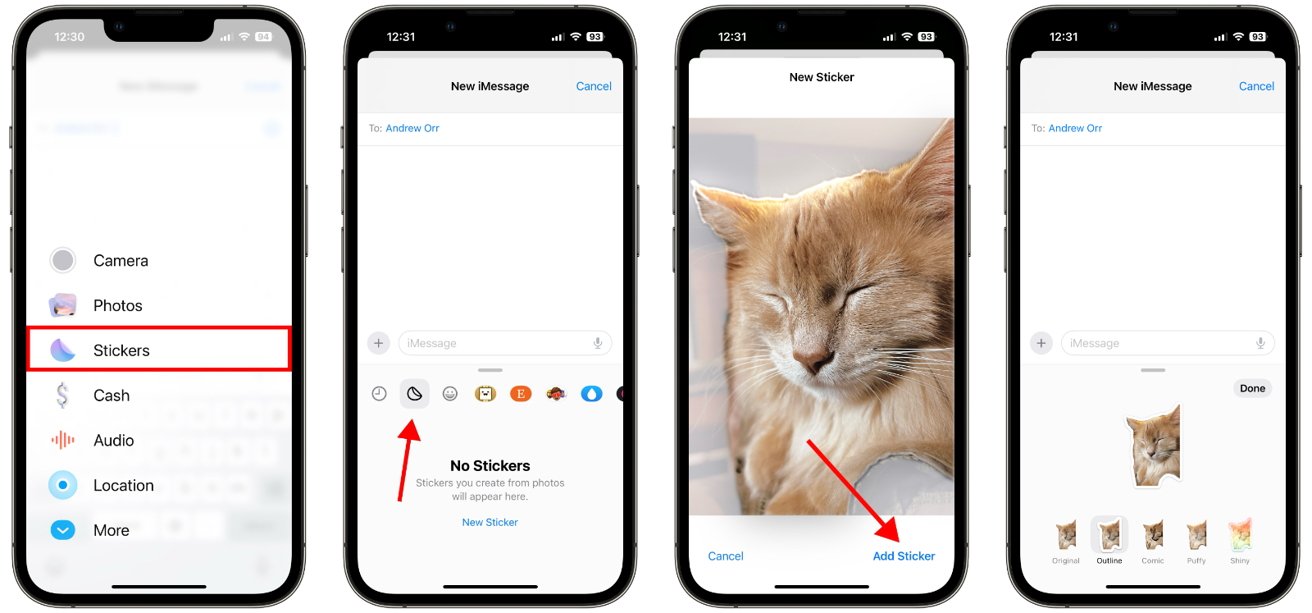
Open the Photos app
Choose a photo with a clear subject
Press and hold on the subject (person, pet, or object)
Wait until a glowing outline appears
Tap Add Sticker
That’s it! Your sticker is now saved.
What Happens Behind the Scenes?
iOS automatically:
Removes the background
Creates a transparent cutout
Saves the sticker to your sticker collection
No manual cropping required.
5. How to Turn Stickers into iMessage Stickers
Once you create a sticker, it automatically becomes available inside iMessage.
To access:
Open Messages
Open any conversation
Tap the + button or app drawer
Select Stickers
Your custom stickers appear in the sticker keyboard.
You can now:
Send as standalone stickers
Drag onto message bubbles
Place over images
6. How to Use Stickers in Message
Stickers are versatile.
Send as a Message
Tap the sticker once and it sends as a message.
Place on a Bubble
Tap and hold the sticker, then drag it onto a text bubble.
Resize and Rotate
Pinch with two fingers to resize
Rotate using two fingers
This lets you place stickers creatively on specific parts of a message.
7. How to Make Stickers Using Live Photos
Live Photos can become animated stickers.
Steps
Open Photos
Select a Live Photo
Press and hold the subject
Tap Add Sticker
Your sticker will include motion, creating an animated effect.
These stickers loop when sent in Messages.
8. How to Add Effects to Your Stickers
After creating a sticker, you can add visual effects.
Available Effects
Outline
Comic
Puffy
Shiny
Glow
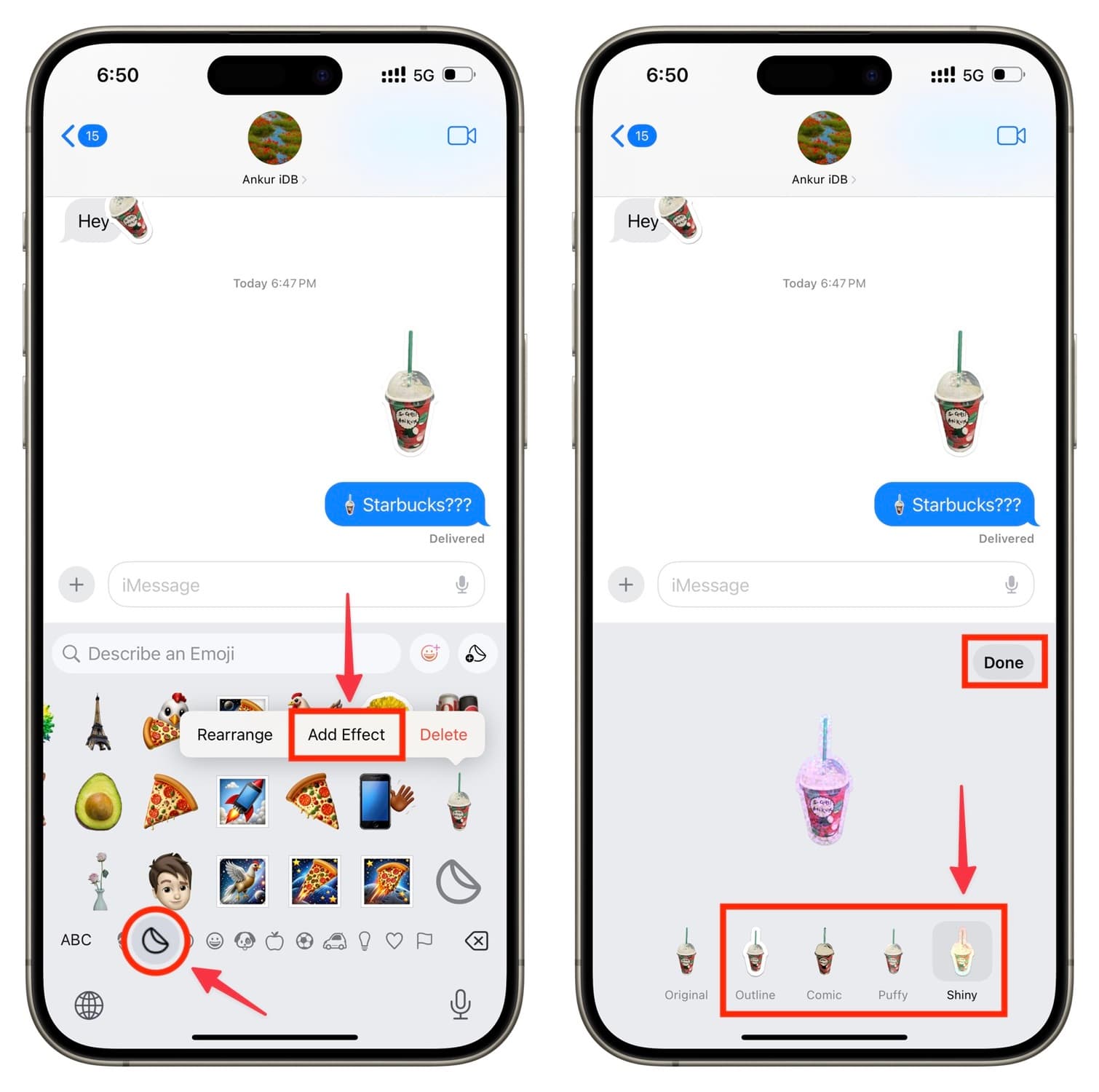
How to Add Effects
Press and hold the sticker
Tap Add Effect
Choose an effect
Tap Done
Effects make stickers more playful and visible against different backgrounds.
9. How to Make Stickers with Third-Party Apps
Although Apple’s built-in tools are powerful, third-party apps provide more customization.
Popular sticker apps include:
Sticker Maker Studio
PicsArt
Canva
GIPHY
Sticker.ly
Typical Process
Download a sticker app from App Store
Import photo
Remove background (manual or automatic)
Add text, borders, or graphics
Export to iMessage or save to Photos
Third-party apps are ideal for:
Adding text overlays
Designing packs
Creating brand logos
10. How to Organize and Delete Stickers
As your sticker collection grows, organization becomes important.
Rearranging Stickers
Open Messages
Open Stickers
Press and hold a sticker
Drag to rearrange
Deleting Stickers
Press and hold sticker
Tap Delete
Keeping your collection tidy helps you find stickers faster.
11. How to Share Your Stickers
You can share stickers with friends in several ways.
Via Messages
Simply send the sticker.
Save as Image
Long-press sticker
Tap Save to Photos
Now you can share via WhatsApp, Instagram, or email.
12. How to Make Animated Stickers on iPhone
Animated stickers come from:
Live Photos
GIFs (using third-party apps)
Using Live Photos
As mentioned earlier, Live Photos become animated stickers automatically.
Using GIFs
Download a GIF maker or sticker app
Import GIF
Convert to sticker format
Export to iMessage
Animated stickers add energy and humor to conversations.
13. Tips for Creating High-Quality Stickers
Choose Clear Photos
Good lighting
Simple background
Sharp focus
Avoid Clutter
Busy backgrounds make cutouts messy.
Use High Resolution
Higher resolution images produce cleaner stickers.
Test Visibility
Make sure your sticker stands out against light and dark backgrounds.
14. Common Problems and How to Fix Them
Sticker Option Not Appearing
Update iOS
Restart iPhone
Background Removal Looks Bad
Use clearer photo
Try third-party app
Sticker Not Showing in Messages
Restart Messages app
Restart iPhone
Most issues are solved by restarting or updating.
15. Best Practices for Sticker Design
Keep designs simple
Use expressive faces or gestures
Add outlines for clarity
Maintain consistent style if creating packs
Consistency makes your stickers recognizable.
READ MORE:
16. FAQs About Making Stickers on iPhone
Can I make stickers without apps?
Yes, using Photos app on iOS 16+.
Are stickers free?
Yes, built-in sticker creation is free.
Can I sell my stickers?
Yes, using third-party platforms or App Store sticker packs.
Do stickers work on other messaging apps?
Most apps accept stickers as images if saved to Photos.
17. Final Thoughts
Learning how to make a sticker on iPhone opens a world of creativity. Whether you want funny reactions, cute pet stickers, or branded designs, Apple’s built-in tools make the process fast and simple.
You don’t need design skills or expensive software—just a good photo and a few taps.
Start experimenting today, and soon your conversations will be filled with personalized stickers that truly represent you.