

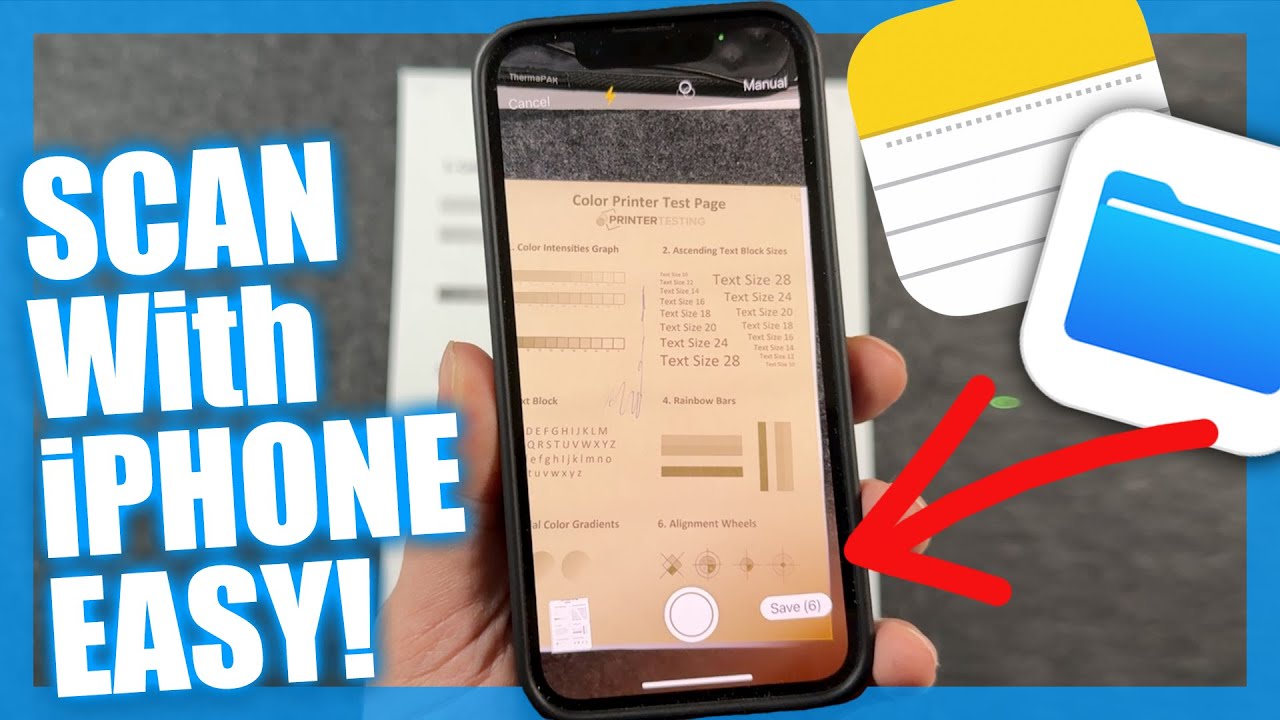
Scanning documents no longer requires bulky scanners or office equipment. With an iPhone in your pocket, you can scan receipts, contracts, handwritten notes, IDs, and more—quickly and professionally. Apple has built powerful document-scanning tools directly into iOS, and when used correctly, they can rival traditional scanners.
This complete, easy-to-read, SEO-friendly guide explains how to scan a document on iPhone, covering built-in methods, third-party apps, editing tips, PDF management, and troubleshooting. Whether you are a student, professional, traveler, or business owner, this guide will help you scan documents like a pro.
Table of Contents
What Does Scanning a Document on iPhone Mean?
Why Use an iPhone to Scan Documents?
What You Need Before Scanning
How to Scan a Document on iPhone Using the Notes App
How to Scan Documents Using the Files App
How to Scan Documents Using the Camera App
Best Third-Party Document Scanner Apps for iPhone
How to Edit, Crop, and Enhance Scanned Documents
How to Save, Share, and Export Scanned Documents
How to Convert Scans into PDFs
How to Scan Multiple Pages into One File
Tips for High-Quality Document Scans
Common Scanning Problems and Fixes
Security and Privacy Tips for iPhone Scans
Frequently Asked Questions (FAQs)
1. What Does Scanning a Document on iPhone Mean?
Scanning a document on iPhone means using the phone’s camera and software to capture a physical document and convert it into a digital file, usually a PDF or image. Unlike a simple photo, a scanned document is:
Automatically cropped
Perspective-corrected
Enhanced for readability
Saved in a shareable format
The iPhone uses advanced image processing to recognize edges, flatten pages, and improve text clarity.
2. Why Use an iPhone to Scan Documents?
Using an iPhone to scan documents offers many advantages:
No extra hardware required
Fast and convenient
Creates professional-looking PDFs
Easy cloud storage and sharing
Secure with Face ID or Touch ID
For everyday tasks like submitting forms, saving receipts, or sharing notes, iPhone scanning is more than enough.
3. What You Need Before Scanning
Before you start scanning documents on iPhone, make sure you have:
An iPhone running a recent iOS version
A clean camera lens
Good lighting (natural light works best)
A flat surface for the document
No apps are required if you plan to use built-in tools like Notes or Files.
4. How to Scan a Document on iPhone Using the Notes App
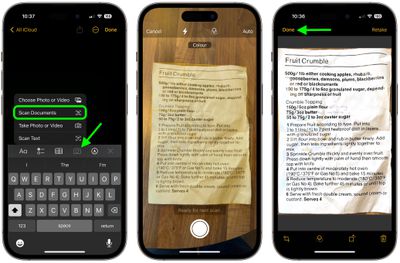
Step-by-Step Instructions
Open the Notes app
Create a new note or open an existing one
Tap the camera icon
Select Scan Documents
Place the document on a flat surface
The camera automatically scans the page
Adjust corners if needed
Tap Keep Scan
Add more pages or tap Save
Your scanned document is now saved inside the note.
Why Notes Is the Best Option
Free and pre-installed
Auto-edge detection
Multi-page scanning
Built-in editing tools
5. How to Scan Documents Using the Files App
The Files app is useful when you want to save scans directly to folders or cloud storage.
Steps to Scan with Files App
Open the Files app
Go to Browse
Tap the three dots (…)
Choose Scan Documents
Scan the document
Save it to your desired folder
This method is ideal for work and document organization.
6. How to Scan Documents Using the Camera App
While the Camera app doesn’t offer true scanning, it can still be useful.
How It Works
Open the Camera app
Take a clear photo of the document
Open the photo
Use Markup or third-party apps to crop and enhance
This is best for quick captures, but it lacks auto-scan features.
7. Best Third-Party Document Scanner Apps for iPhone
If you want advanced features, third-party apps can enhance your scanning experience.
Top Scanner Apps
Adobe Scan – OCR and cloud sync
CamScanner – Smart cropping and annotations
Microsoft Lens – Excellent for documents and whiteboards
Scanner Pro – Premium quality scans
Why Use Third-Party Apps?
Optical Character Recognition (OCR)
Password protection
Advanced export options
Cloud integrations
8. How to Edit, Crop, and Enhance Scanned Documents
After scanning, you can improve document quality.
Editing Options in Notes
Crop edges
Rotate pages
Apply color filters (Black & White works best)
Adjust brightness and contrast
Filters Explained
Color – Best for images
Grayscale – Balanced look
Black & White – Ideal for text
Photo – Natural appearance
9. How to Save, Share, and Export Scanned Documents
Once scanned, iPhone offers many sharing options.
Ways to Save
Keep inside Notes
Save to Files
Upload to iCloud, Google Drive, or Dropbox
Sharing Options
Email as PDF
AirDrop
WhatsApp or Messenger
Print directly
10. How to Convert Scans into PDFs
Most scans are automatically saved as PDFs.
Convert to PDF Manually
Open the scanned document
Tap Share
Select Save to Files
Choose PDF format
PDFs are ideal for professional and legal use.
11. How to Scan Multiple Pages into One File
Multi-page scanning is extremely useful.
How to Do It
Continue scanning pages before tapping Save
Each page is added to the same document
Rearrange or delete pages afterward
This is perfect for contracts, books, and reports.
12. Tips for High-Quality Document Scans
Follow these tips to get the best results:
Use bright, even lighting
Avoid shadows
Keep the document flat
Clean the camera lens
Use Black & White filter for text
Hold the phone steady
Small improvements can make scans look professional.
READ MORE:
iPhone 17 Release Date – Complete Guide, Timeline, Rumors, and Expectations
13. Common Scanning Problems and Fixes
Blurry Scans
Hold phone steady
Improve lighting
Edges Not Detected
Move the document to a contrasting background
Large File Size
Use Black & White filter
Reduce resolution in third-party apps
14. Security and Privacy Tips for iPhone Scans
Protect sensitive documents with these tips:
Lock Notes with Face ID
Avoid public Wi-Fi when sharing
Use password-protected PDFs
Delete unnecessary scans
Your iPhone offers strong built-in privacy controls.
15. Frequently Asked Questions (FAQs)
Can I scan documents on iPhone without an app?
Yes. The Notes and Files apps allow document scanning without downloads.
Are iPhone document scans legally valid?
In most cases, yes. Many institutions accept scanned PDFs.
Can I scan IDs and passports?
Yes, but always follow local laws and privacy guidelines.
How do I scan handwritten notes?
Use the Notes app and apply the Black & White filter.
Can I scan documents offline?
Yes. Internet is only required for sharing or cloud storage.
Final Thoughts
Learning how to scan a document on iPhone can save time, reduce paper clutter, and make your workflow more efficient. With powerful built-in tools and optional third-party apps, your iPhone becomes a portable scanner you can rely on anytime, anywhere.